Setting up ConnectWise Manage Pods
ConnectWise Manage Pod Configuration
A user with access to their ConnectWise setup tables is required to check for or manually update their ConnectBooster tab settings. This is done under System + Setup Tables + Manage Hosted API Setup. Selecting Edit on the ConnectBooster entry or using the “+” and adding an entry should result in the page like below.
NOTE The URL is case sensitive and must be entered in lowercase.
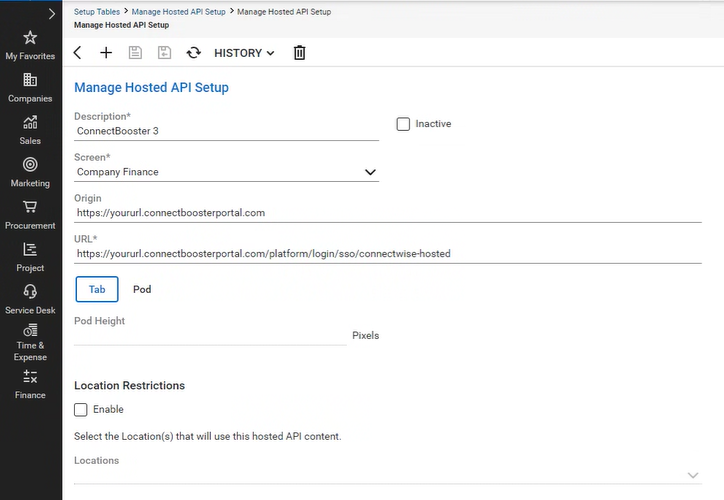
The values of the URLs should be
- Origin: https://yoururl.connectboosterportal.com
- URL: https://yoururl.connectboosterportal.com/platform/login/sso/connectwise-hosted
Select as a TAB and it should be available across ALL locations.
ConnectWise Manage Pod Setup
- In , navigate to any company's Company Finance Screen.
- Scroll to the far right of the Tabs menu to access the Gear icon.
- Click the gear icon to access the Tab Configuration.
- Move the "ConnectBooster" Tab over to the "Displayed" tabs section.
- Click Save.
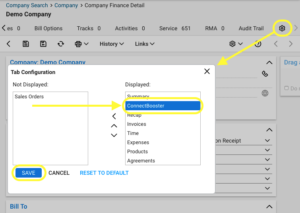
The ConnectBooster tab should now be visible in the list of tabs in the location specified from the Tab Configuration screen. Navigating to the tab should begin to authenticate your ConnectWise member.
The primary email for this member must match to a ConnectBooster Admin's Email
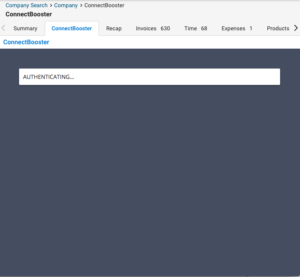
If authentication is successful, the ConnectBooster Company Overview page will load for the corresponding company you are accessing in ConnectWise. If authentication fails, the user will be brought to the log in page.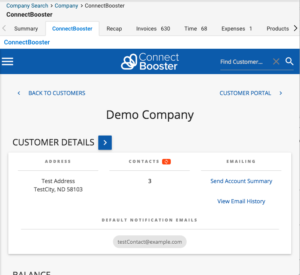
Troubleshooting
If the ConnectBooster tab is not displaying after adjusting your view, log in to your ConnectBooster Portal through a standard web browser. Next, navigate to your ConnectWise integration under Setup + Integrations.
Select the "Test Connection" button to ensure communication is working with your ConnectWise instance. This should also validate that the ConnectBooster Pod configuration is accessible.
NOTE The email used to log in to your ConnectWise instance MUST be the same email address used to log in to your ConnectBooster portal.


